Log in to the user interface or create a new user account.
Select VPS with WebApps
from the list of virtual servers on the "Dashboard" or "VPS" menu by clicking the "Detail" button. If you do not have a WebApps server, you can create a new one or reinstall an existing VPS.
Where to create SQL database:
In the WebApps
server detail, click on the tab "Web apps> SQL server> Database". The condition is to run SQL server, in whose administration everything what is needed.
Create a new database by clicking on the "New SQL database" button.
Where to create SQL login:
In the WebApps
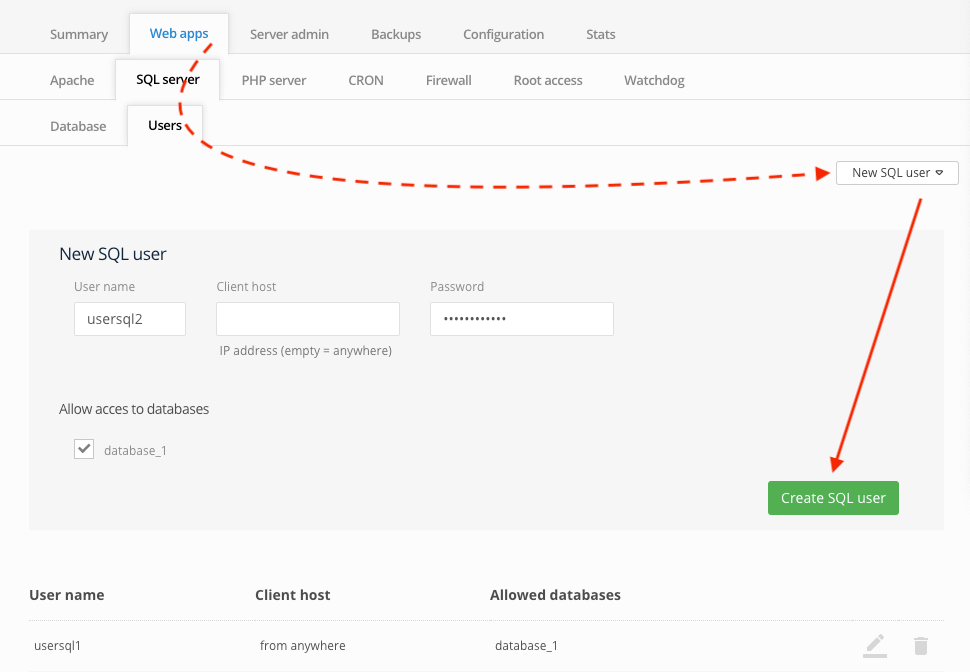
server detail, click on the tab "Web apps> SQL server> Users". The condition is to run SQL server, in whose administration everything what is needed.
Create a new SQL user by clicking the "New SQL user" button.
User name:
Define the SQL login name.
Heslo:
Define your SQL password.
Client host:
Computer Access: Allows you to restrict access to your database to a specific IP address. You do not have to specify the IP address if you want to access it from any IP address.
Allowed databases:
Check the checkbox of all databases to which the new SQL user should have access permissions.
SQL account records can also be edited or deleted in the GUI.